Using VMware in LNG-103
The Linux Lab, LNG-103, used to have Linux machines. Since those machines were getting pretty old, they were replaced over the summer of 2019 with Windows machines which have the capability of connecting to Virtual Linux desk-tops. This web page describes how to connect and use those virtual desk-tops.
Contents:
Connecting to a Virtual Desktop
Use the following procedure to connect to a Virtual Desktop:
- Log on to the Windows machine using your PODS userid and password. You will then see a desktop that looks like...
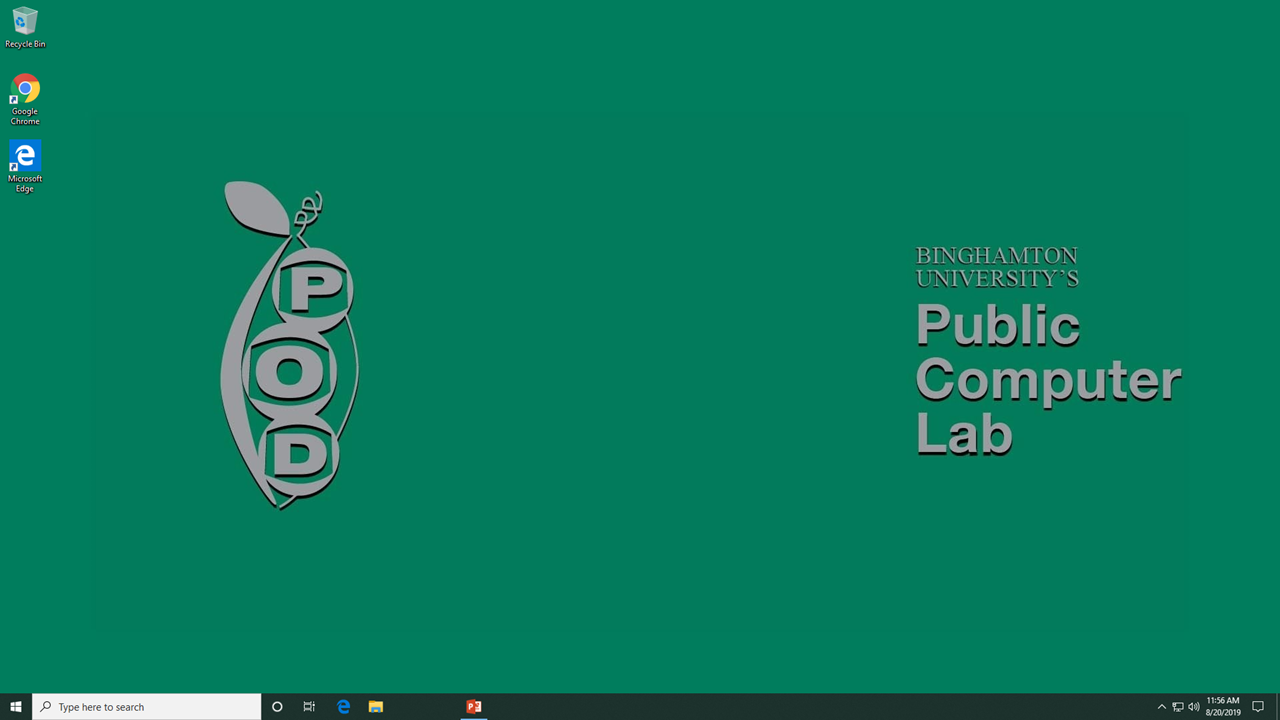
- Look for the VMware/Horizon Client icon on the Windows Desktop, and double-click on that icon to run it.

If there is no VMware/Horizon icon on the Windows Desktop, open the Windows "Start" menu (click on the Windows Start Button in the lower left corner of the screen), and scroll down to the "V" section to find the "VMware/Horizon" app, and click on that.
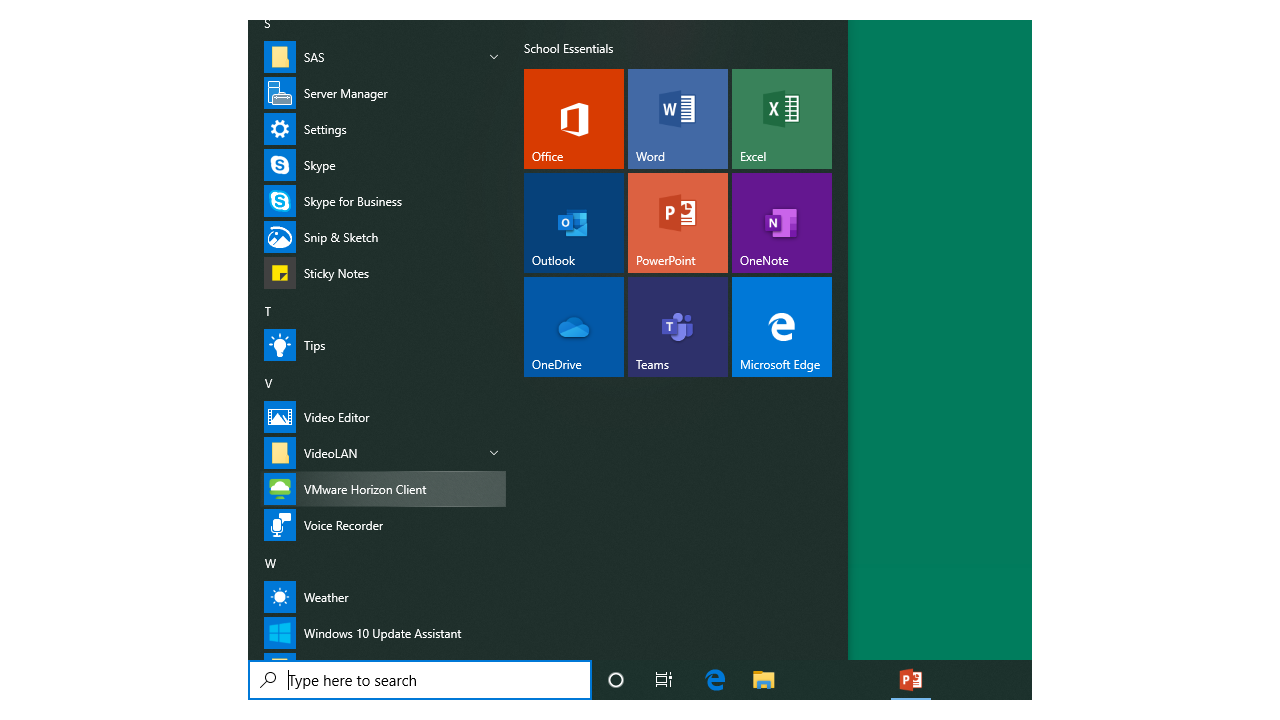
- This will open the VMware/Horizon Client application. You will find a list of available servers in that application window, and one of those servers should be "LNG103.binghamton.edu". (If "LNG103" is not available, click on the "+New Server" button, and add "LNG103.binghamton.edu".)
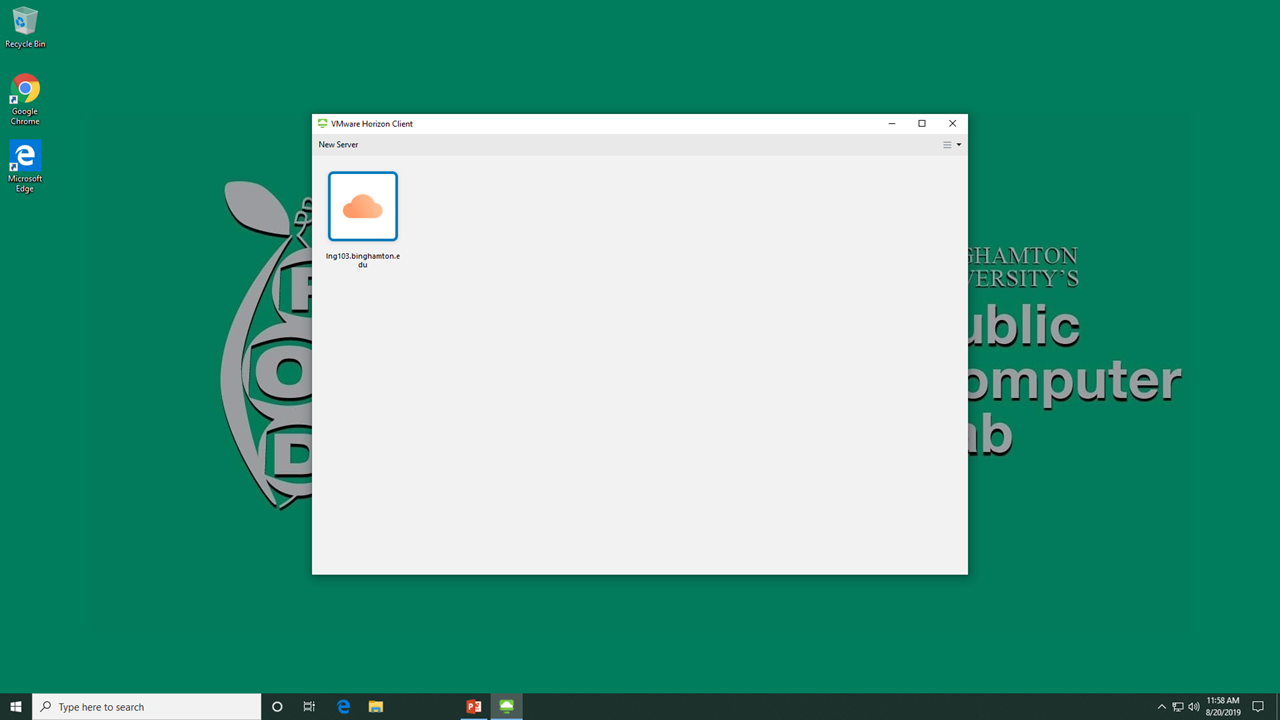
Double click on the "LNG103.binghamton.edu" icon. If you try to access this server from outside of LNG-103, it will not connect. (It will spin for a while, and eventually time out.) This is to ensure that when you are in lab, you will have a Linux virtual machine available to you.
- If you are in LNG-103, the LNG103 server will connect, and you will see a log-in pop-up screen...
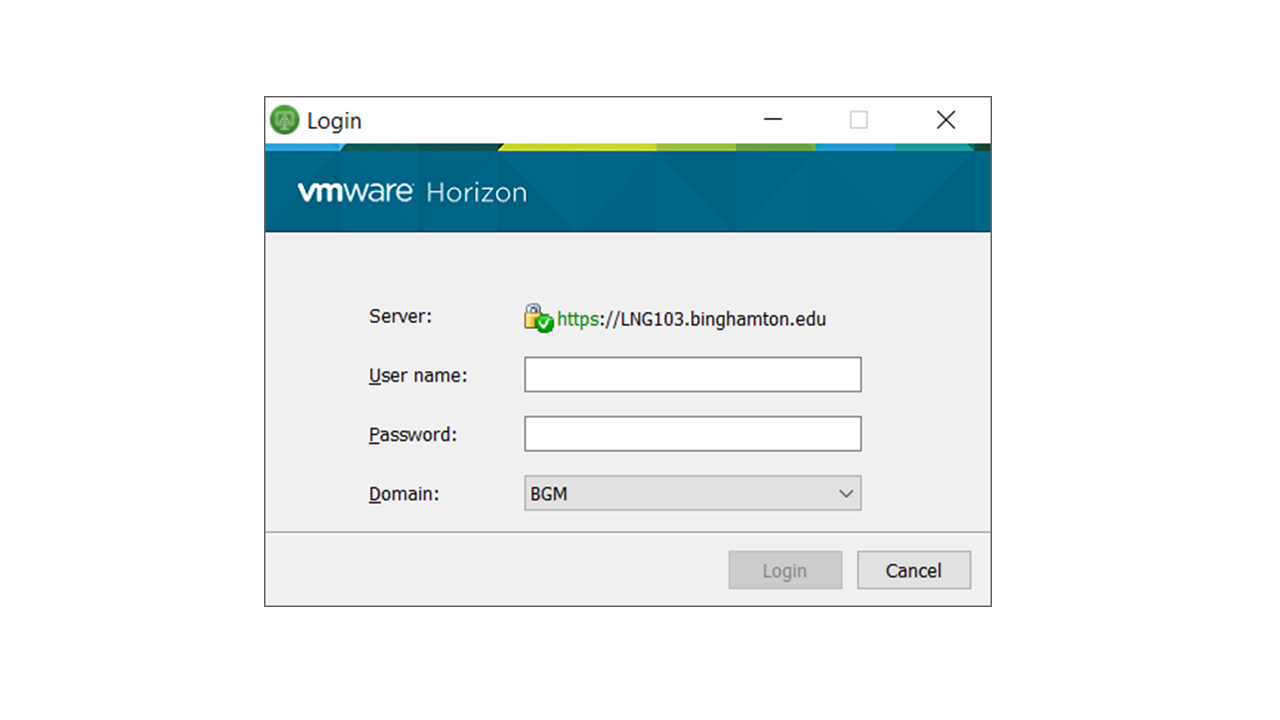
Fill in your PODs userid and password, and make sure the Domain is "PODS", then click on the "Login" button.
- You may get an informational pop-up that looks like:
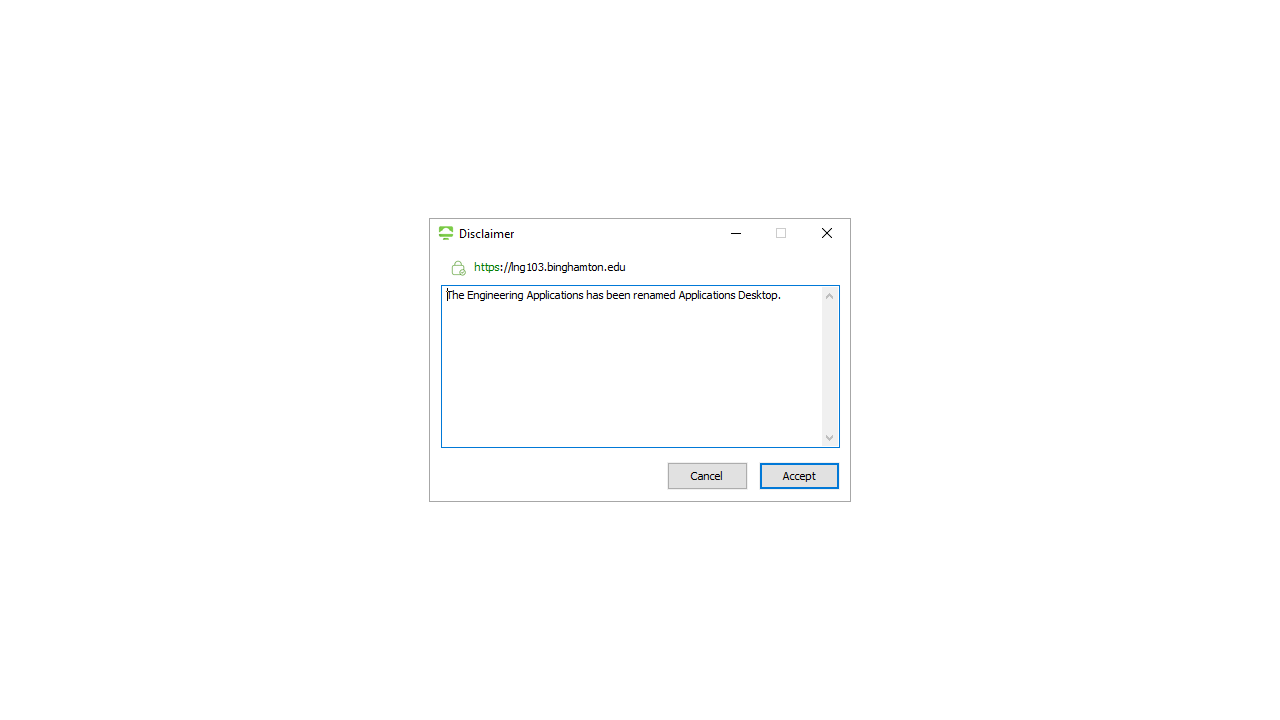
If so, just click on the "Accept" button.
- You will then get a screen asking what kind of Virtual Machine you want.
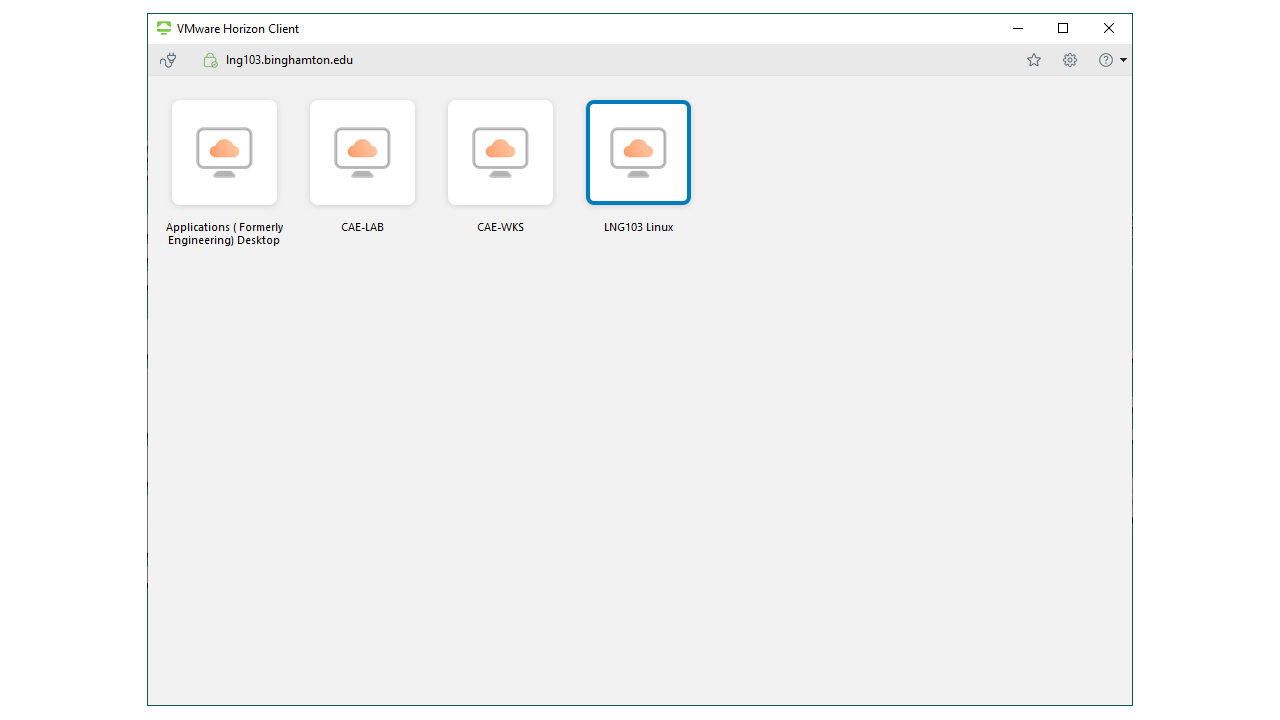
Double click on the "LNG103 Linux" option.
- Wait for a while... it takes a few seconds to build your new virtual machine. Eventually, you should see the Linux Desktop...
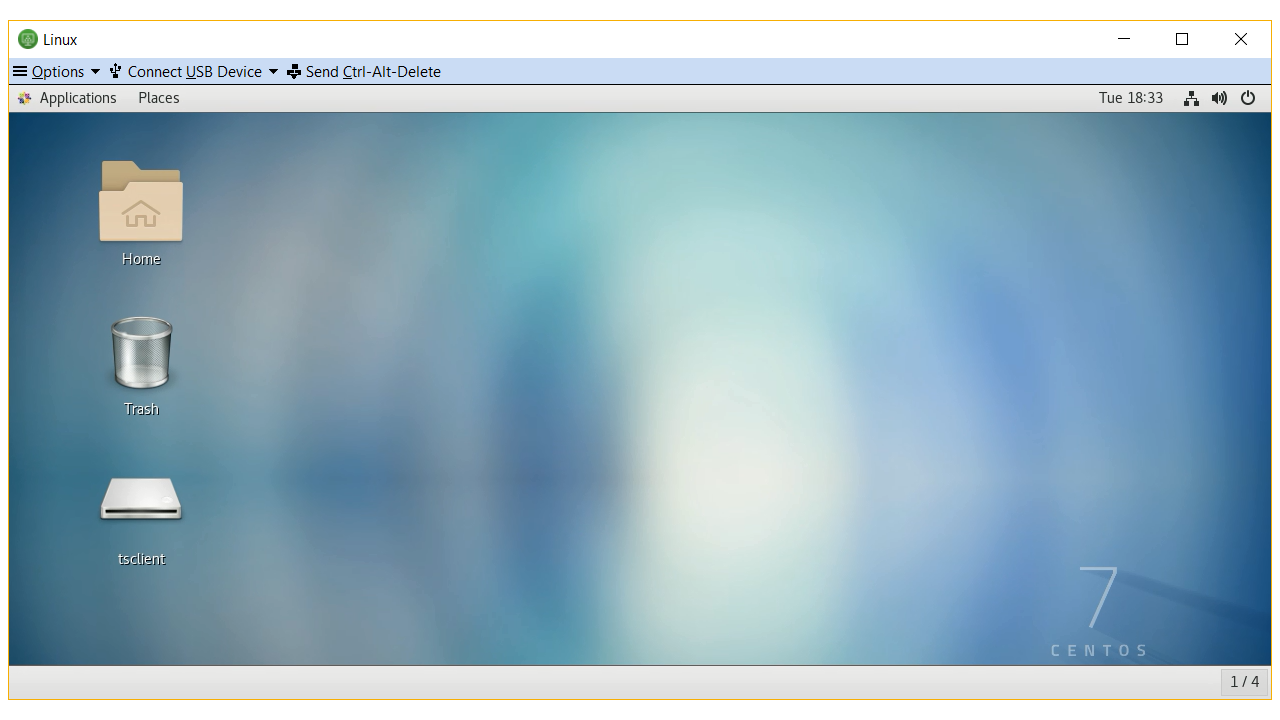
Note... the desktop usually comes up maximized, but you can click on the "Restore Down" double rectangle in the upper right corner of the frame to make a smaller window, as shown.
Back to Contents
Navigating in a Virtual Desktop
There are several parts relating to the Virtual Desktop. The following picture shows the Virtual Desktop in it's own window. If your Virtual Desktop is maximized, it looks a little different, but is very similar.
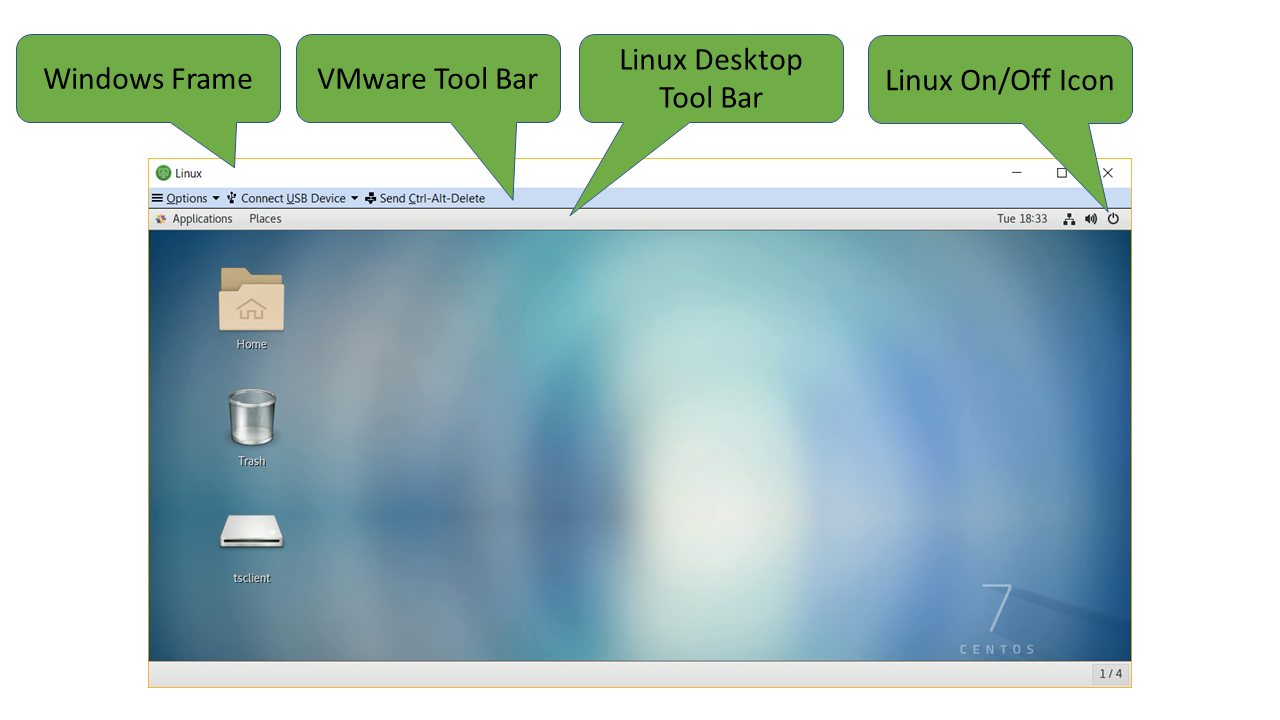
- Windows Frame
- This is the normal Windows Frame that contains a title on the left, and minimize, maximize, and X buttons on the right. Please refrain from using the "X" button on the right in the Windows frame. This will close the VMware/Horizon Client, but will not close your Virtual Machine, which will continue to run, using resources on the VMware server.
- VMware Tool Bar
- This is a tool bar that provides some VMware/Horizon client options. Feel free to explore these at your leisure, but in general, we won't use these options much.
- Linux Desktop
- The remainder of your screen is a Linux desktop. The Linux Desktop has its own Tool Bar, as well as several icons. You can double click on these icons to start the associated applications, such as a file browser for your home directory. When you open an application, it will open a window inside the Linux Desktop.
If you right click inside the Linux Desktop, you will get a pop-up menu of options, as follows:
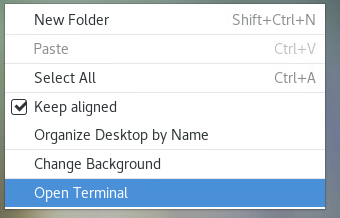
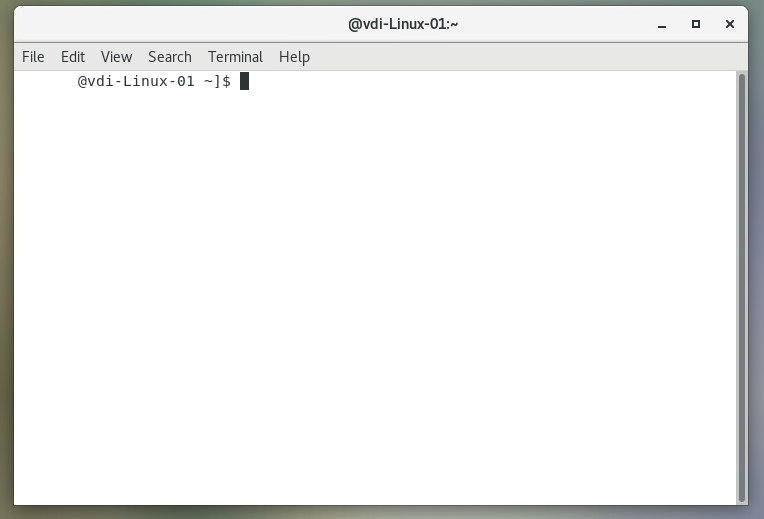
If you right click on "Open Terminal" in this window, you will get start the Linux terminal window application, which has a window as follows:
I often click outside the VM Linux window, then click on a button inside the VM Linux window, and wonder why it doesn't react. If you click outside of the entire VM Linux window, the the VM Linux window will lose "focus". You will need to click once anywhere inside the VM Linux window to regain "focus", then the next click inside the window will be recognized.
If you need more space, play around with the "1/4" in the lower right corner. You actually have 4 desktop panes, and the 1/4 button allows you to navigate between panes.
- Linux Desktop Tool Bar
- The Linux Desktop Tool Bar has a menu on the left. To start applications, left click on the "Applications" menu item to see a pop-up menu that looks like:
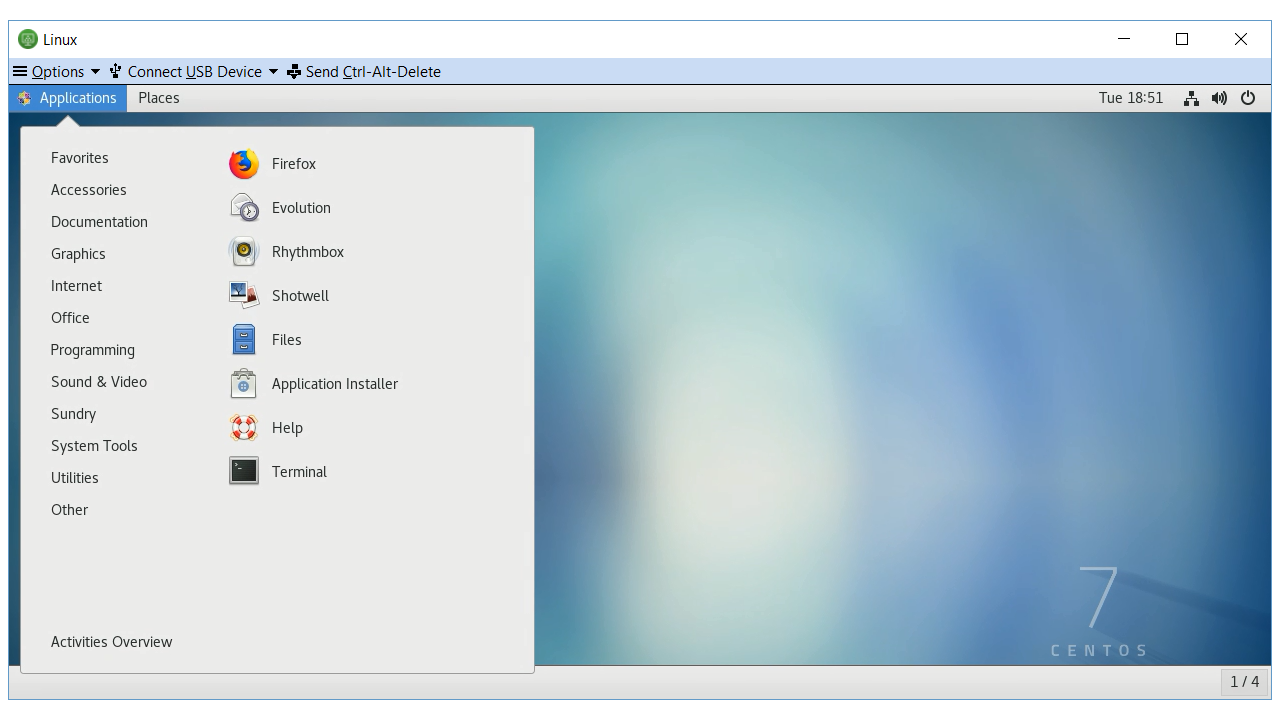
Start applications such as a terminal window or a web browser, or an editor from this pop-up.
On the right side ofthe Linux Desktop Tool Bar are several icons. Use the On/Off icon on this tool bar to shut down your virtual machine.
Back to Contents
Using a Network "U" Drive
When you log on to a VMware Linux virtual machine, if you have a "Network U Drive", that drive will be your home directory. Everyone who was originally registered for this class already has a U drive. You can check to make sure you have a U-Drive, and that U-Drive is mounted as your home directory by following the directions in the Checking to See if your Network "U" Drive is Mounted section below.
The first time you log on to VMware/Horizon, your U-Drive does not contain an initialization script. The initialization script will do things like enable colors when you run the ls command, and putting meaningful information in your command line prompt. In order to create a useful initialization script, all you need to do is run the following command:
cp /etc/skel/.bashrc .
This will copy a system initialization script into a .bashrc intialization script on your U-Drive. This will then run automatically every time you log on to VMware Linux virtual machine from now on.
It is possible to access your U-Drive from other machines as well. For more information, see the help desk U-Drive page.
At the end of the year, sometime in the spring or summer, the IT department will zip up the contents of your U-Drive and put the zip file in your Google Drive, and then will reclaim your U-Drive.
Back to Contents
Checking to See if your Network "U" Drive is Mounted
If you do not have a Network "U" Drive, or if your U-Drive is not automatically mounted when you log on, then you will get a temporary home directory when you log on. In this case, all the changes you make in your home directory will get removed when you log off. The next time you log on, you will get a "clean" home directory again.
You can tell if your U-Drive is mounted by opening a terminal window, and running the command mount | grep userid from the command line window prompt, where userid is your PODS userid. If you have a U-Drive, you should see an entry in the results for //bushare.bu.binghamton.edu/userid$ on /home/PODS/userid
If your U-Drive is not mounted, it might be because you do not have a Network U Drive. (If you registered late for the class, you may not have been in the list of students who were automatically given a U drive.) In order to do useful work, you will need to request a U drive. Follow the instruction on the help desk U-Drive page to request a Network U Drive. Once you get your U-Drive, notify your instructor so that we can make sure your U-Drive gets mounted when you log on.
If you have a U-Drive, but it is not automatically mounted, notifiy your instructor so that your VMware LNG103 Linux account can be updated to automatically mount your U-Drive as your home directory.
Back to Contents
Virtual Desktop Time-Outs
If you do not do anything in your Virtual Linux Desktop for a few minutes, it will "time out". This is a security feature to prevent other people from using your desktop if you are called away. The time out starts with a fade to black. If you are sitting in front the screen and it starts to fade, click on the screen and the screen will not time out. When a time out occurs, you will see a screen that looks like: (I've added the green up arrow to highlight how to unlock.)
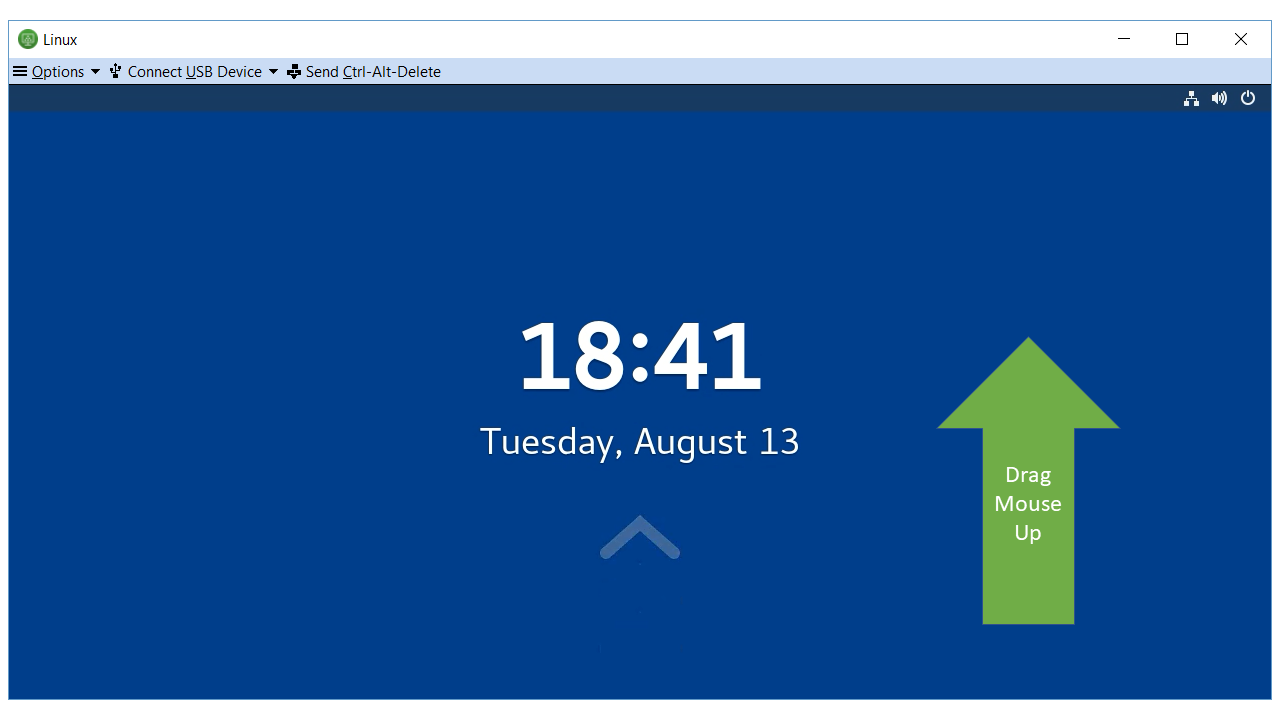
Notice that there are occasionally arrows moving from the bottom of the screen to the top of the screen. These arrows are a hint that to unlock your Virtual Linux desktop, you need to hold the left mouse button down, and move the mouse toward the top of the screen. When you do so, you will get the unlock screen:
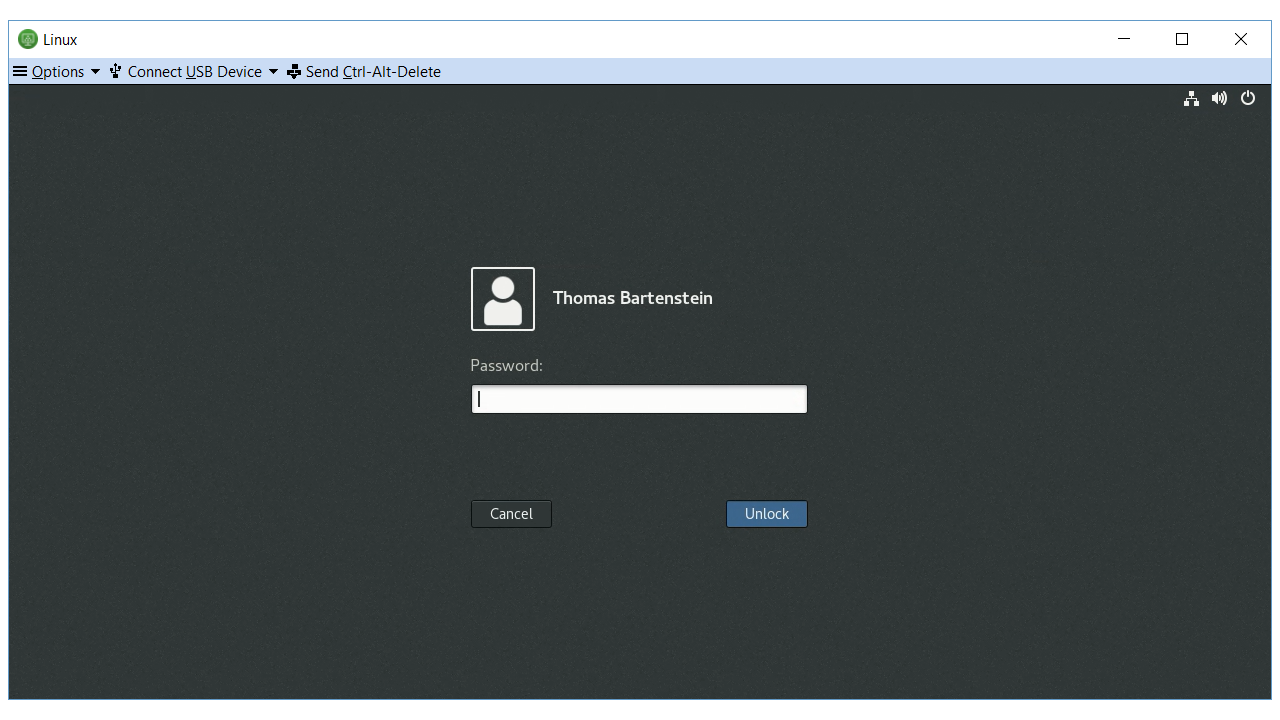
On this unlock screen, enter your PODS password, and click on the unlock button to get back to your Virtual Linux Desktop.
Back to Contents
Disconnecting from a Virtual Desktop
When you are finished with your current session, the easiest way to log out is to click on the "X" at the upper right hand of the screen. This will close your VMWare/Horizon session, but leave your virtual machine running for two minutes. (That gives you a chance to reopen VMware/Horizon and reconnect if you clicked on the "X" by mistake.) After two minutes, your Virtual Machine will be closed, cleaned, and made available as a resource to other students.
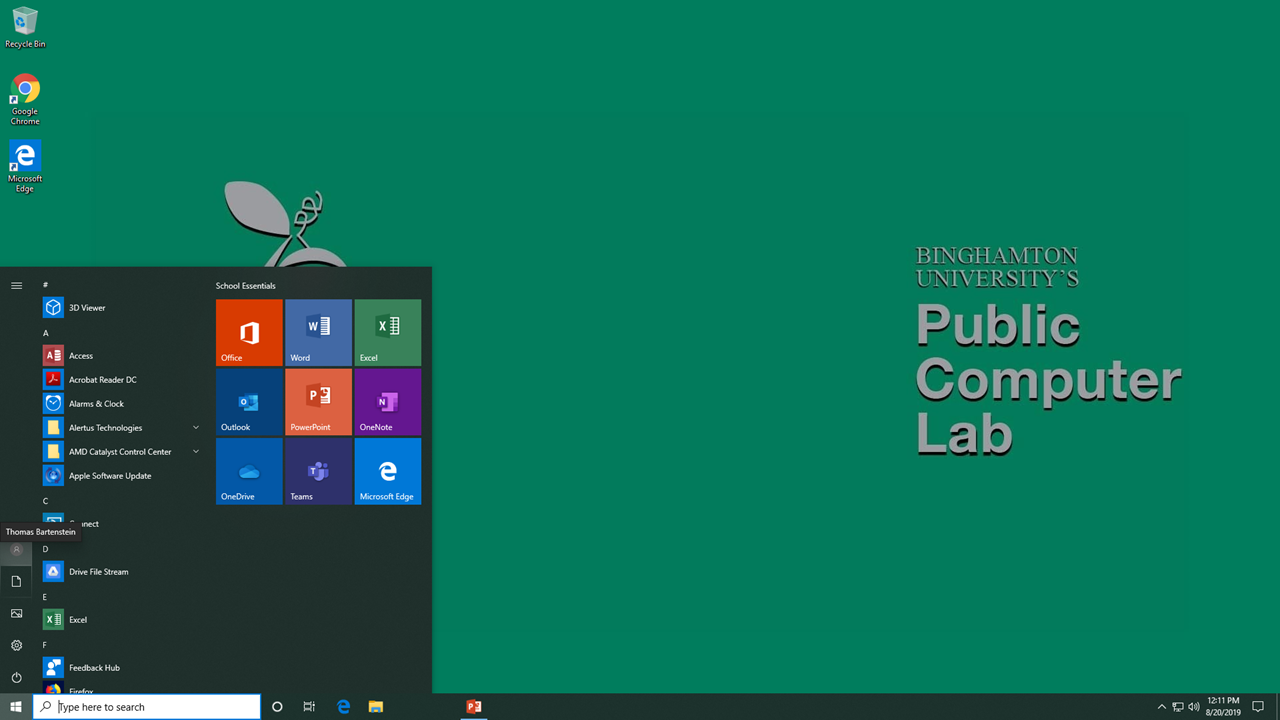
Note that to exit the Windows environment, as with any other PODS machine, you should not power down, but disconnect, using the disconnect button available from the Start menu:
Back to Contents