BUBrain: Difference between revisions
| Line 73: | Line 73: | ||
- Processes Affected |
- Processes Affected |
||
'''!''' If users have no hold on their accounts, the program will display an error saying “No holds exists on your account.” |
'''!''' If users have no hold on their accounts, the program will display an error saying '''“No holds exists on your account.”''' |
||
''My Grades:'' In this activity, users see a drop down list that they can choose the term in order to see their schedules. And then, all of the final grades, earned hours, GPA Hours, Quality Points of the courses are displayed to them in the new activity. This activity also shows the cumulative GPA of the selected term. |
''My Grades:'' In this activity, users see a drop down list that they can choose the term in order to see their schedules. And then, all of the final grades, earned hours, GPA Hours, Quality Points of the courses are displayed to them in the new activity. This activity also shows the cumulative GPA of the selected term. |
||
| Line 127: | Line 127: | ||
- Days |
- Days |
||
- Time |
- Time |
||
'''!''' If users select a term that they are not registered, the program will display an error saying “You are not currently registered for this term” |
'''!''' If users select a term that they are not registered, the program will display an error saying '''“You are not currently registered for this term”''' |
||
''Final Exam Schedule:'' Users select a department from a drop down list, and they will see the detailed table of course names, exam dates, time, locations, and instructors of the related courses. |
''Final Exam Schedule:'' Users select a department from a drop down list, and they will see the detailed table of course names, exam dates, time, locations, and instructors of the related courses. |
||
Revision as of 23:10, 20 May 2011
THE SCOPE AND THE PURPOSE OF THE PROJECT
Bubrain project is an Android Smartphone application which enables Binghamton University students to log in to the Bubrain system(http://www2.binghamton.edu/self-service/).
Bubrain is a complex system, which enables students to view their academic status, student information, financial status, class schedule, student tools and etc. However it is hard for students to log in and find the necessary features easily in Bubrain because the website is pretty complex and it’s interface is designed for personal computers.
This project aims easy access to Bubrain and view their schedules via this mobile application. In this application, the most necessary features are selected carefully and the menu is redesigned for easy and quick access.
This will be a free application, so all Binghamton University students will be able to download the application from Android Market. The system is a login/logout system so the students are expected to enter Bubrain account username and password.
Hardware and Software
Android Development Environment, Eclipse 3.4 (Ganymede) and the latest version of Java JDK is required. Minimum configuration of development environment PC’s:
- Minimum processors requirement: 1 gigahertz (GHz) processor
- Minimum memory requirement: 256 MB RAM
- 2 GB of available hard disk space required
- Windows XP or higher operating system, Linux will be better.
Users Manual of BUBrain for Android Project
BU Brain Mobile application is an application designed to run on an Android Operating System. It makes http request to university’s server in order to access Binghamton University database. The connection is through internet connection either using wireless communication or using the service phone operator provides. Application consists of five major activities: Main activity, Bu Info activity, Personal Info activity, Student activity, and Registration activity.
- Main Activity
Main activity is the activity holding links to other activities. Basically, it has four buttons, named Bu Info, Personal Info, Student, Registration and a Login interface below the buttons. Some of the activities in the program require a login, so their buttons are disabled in the beginning of the program.
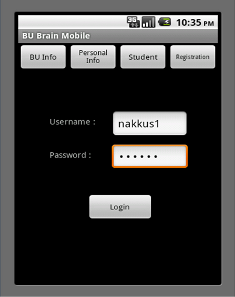

Login Interface: It will be on the main activity, below the buttons of other activities. It consists of two edit text boxes and a login button. After the user fills username and password edit text boxes and presses the Login button, the username-password couple sent to corresponding Binghamton University Server and an authorization is made if login is successful. This authorization also enables the buttons disabled in the beginning.

- BU Info Activity
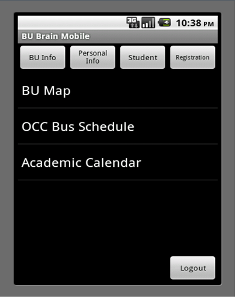
This activity deals with the information independent from the student. It has links to common used websites in Binghamton University. These links are Bing Map, Bus Schedule, and Academic calendar.
Bing Map: Creates intent to a web browser, and directs user to http://www.binghamton.edu/maps/ hyperlink, which goes to the Binghamton University Maps webpage. Bus Schedule: Creates intent to a web browser, and directs user to http://occt.binghamton.edu/index.php/schedules hyperlink, which goes to the Binghamton University OCCT web page. Academic Calendar: Creates intent to a web browser, and directs user to http://www2.binghamton.edu/about/university-calendar.html hyperlink, which goes to the Binghamton University Academic Calendar.

- Personal Info Activity
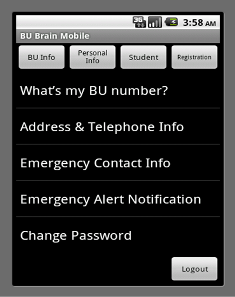
This activity is dealing with the personal information of the student. It’s list will have “What’s my BU?”, “Address and Telephone Number Info”, “Emergency Alert Notification”, “Emergency Security Contact Info”.
What’s my BU? : This activity is enabled after a user had successfully logged in. It will get the BU Number of the logged user and display it on the screen. Address and Telephone Number Info: Provides user interface to view their address and phone number information. Emergency Alert Notification: Creates intent to direct the user to a web page that allows users to configure emergency alert notifications. Emergency Security Contact Info: Provides user interface to view their emergency security contact information.

- Student Activity
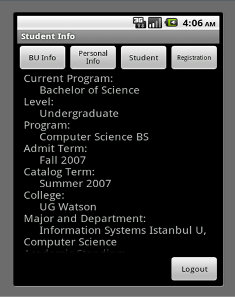
Student activity is dealing with displaying the academic status of the student. Its sub activities are “My Grades”, “My Schedules”, “View Holds”, and “Final Exam Schedule”. View Holds: This activity enables user to view their holds on their accounts. User will see the hold type from Student Accounts, the detailed information will be displayed after selecting that hold type. The next page will contain all the details of the hold:
   - Hold Type
   - From Date
   - To Date
   - Amount
   - Reason
   - Originator
   - Processes Affected
! If users have no hold on their accounts, the program will display an error saying “No holds exists on your account.”
My Grades: In this activity, users see a drop down list that they can choose the term in order to see their schedules. And then, all of the final grades, earned hours, GPA Hours, Quality Points of the courses are displayed to them in the new activity. This activity also shows the cumulative GPA of the selected term. When this feature is selected, a new activity will display the terms and dates. After selecting the term a new activity will show :
   - Student Information
   - Undergraduate Course Work
   - Undergraduate Summary
* Student Information: Under this activity, these features will be displayed:
   - Current Program
   - Level
   - Program
   - Admit Term
   - Catalog Term
   - College
   - Major and Department
   - Academic Standing
* Undergraduate Course Work: Under this activity, the taken courses and the grades of that courses will be displayed. When user selects one of the courses, these features will be displayed:
   - CRN
   - Subject
   - Course
   - Section
   - Course Title
   - Campus
   - Final Grade
   - Attempted
   - Earned
   - GPA Hours
   - Quality Points
* Undergraduate Summary: Under this activity, these features will be displayed:
   - Current Term
   - Cumulative
   - Transfer
   - Overall
If one of them is selected by the user, these will be displayed with the related feature:
   - Attempted
   - Earned
   - GPA Hours
   - Quality Points
   - GPA
My Schedules: In this activity, users see a drop down list that they can choose the term in order to see their schedules. By this way, students can see the detailed schedule of the selected term in the new activity. When this feature is selected, a new activity will display the terms and dates. After selecting the term a new activity will show the related courses of the selected term. When the user selects a course from the displayed activity, these features are going to be displayed:
   - CRN
   - Course Number
   - Title
   - Registration Status
   - Credits
   - Grade Mode
   - Date Range
   - Days
   - Time
! If users select a term that they are not registered, the program will display an error saying “You are not currently registered for this term”
Final Exam Schedule: Users select a department from a drop down list, and they will see the detailed table of course names, exam dates, time, locations, and instructors of the related courses. The classes with shortened names will be displayed after selecting one of them. Classes with exam dates will be displayed. After selecting one of these courses, these features of that class will be displayed:
   - Dept
   - Course
   - Section
   - Date
   - Start
   - End
   - Location
   - Instructor
Team Members
This page is written by Emre Akkus, Selin Cinte and Rabia Sozkesen.
- Necip Emre AKKUS: Programmer/ Application Designer/ Design
- Rabia SOZKESEN: Programmer/ Research / Application Developer
- Selin CINTE: Programmer/ Research/ Analyst
