CS-360, Assignment 7
CS-360 Due Date: 11-30-2009
CS-580H Due Date: 12-1-2009
In this assignment you are to implement a Visual Studio .NET
application that
will allow the user to play a track from an audio CD in the computer's
CD-ROM
drive, play back a movie file or sound file, and/or use a microphone to
record
and save a WAV audio file. The application should also display a
progress bar
to indicate the progress of playing back any clip. The program should
be
implemented in C# and use the mciSendString(...) function imported from
the
Windows MCI library as discussed in class.
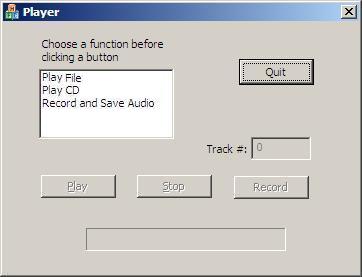
The client area of the application's form should have the following
controls:
A Listbox with "Play File", "Play CD", "Record and Save Audio"
choices:
-Choosing the "Play File" item selects playing a
video or audio file;
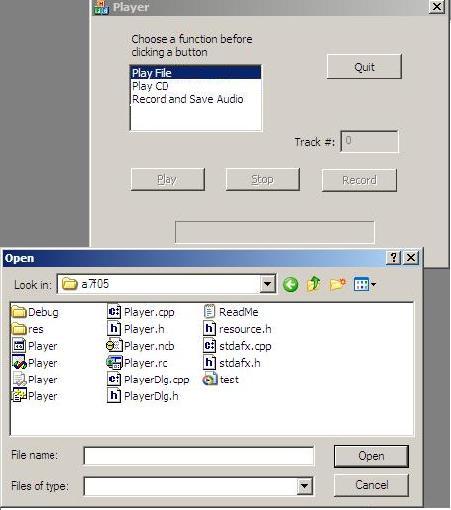
Here a common file dialog box
should appear
to enable the user to select a
file to play;
-Choosing the "Play CD" item selects the audio CD
for playing;
-Choosing the "Record and Save Audio" item selects
recording a sound clip;
A text box for entering the track number on the CD;
A progress bar to indicate the progress of playing back any clip;
A label control that displays the elapsed playing time of any
playback;
"Play", "Stop", and "Record" buttons:
If "Play" is pressed and "Play File" had
been selected previously:
-the file previously selected with
the common file dialog should be played
-The progress bar should indicate
how long the track has been playing;
-The label control should
periodically show for how long (minutes
and seconds) the track has
been playing.
If "Play" is pressed and "CD" had been
selected previously:
-The CD track selected by the user
in the text box should be played;
-The progress bar should indicate
how long the file has been playing;
-The label control should
periodically show for how long (minutes
and seconds) the track has
been playing.
If "Record" is pressed and "Record and Save
Audio"
had been selected previously:
-The application should record
whatever sound is made into the microphone
until the user presses the
"Stop" button;
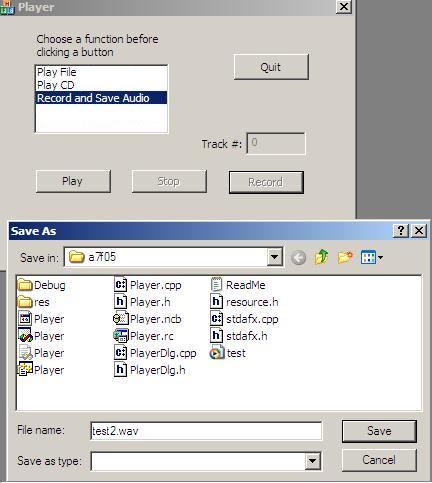
-Then a Common File Dialog box
should appear to enable the user to
enter/choose a .WAV file
name;
-The recording should be saved to
that file.
If "Stop" is pressed:
-Any playing or recording
should stop and the device should be closed.
A "Quit" button should terminate the application.
At all times during execution of the program, any buttons that are not
relevant
should be disabled. (For example, while a clip is playing, both the
"Play" and
"Record" buttons should be disabled; only the "Stop" button should be
enabled.)
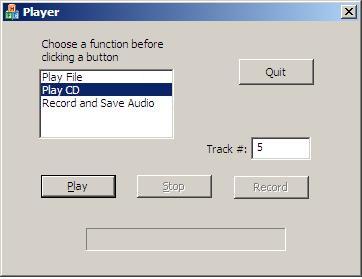
The application should perform in much the same way as the class demo.
The following
screen shots show how the application's window might look at
different moments during execution. The first is right after it starts;
the second
after the user has selected "Play CD"; the third and fourth after
pressing the
"Play" button just after having selected "Play File"; the last after
having
pressed the "Record Button", speaking into the microphone, and pressing
the
"Stop" button.

Since some of the campus public computers may have their sound cards disabled, you
may have to try your program out on some other computer -- perhaps a computer in the
CS-210 lab, a home computer, or the HCI Lab machine, which will be available during
the office hours of the TAs. That machine will have speakers (or earphones)
and a microphone. (The office hours are posted on the CS-360 "Syllabus" web pages.)
During my office hours you could test your program on my office desktop computer.

A couple of suggestions:

Use the ProgressBar class in conjunction with a timer to make the progress bar
work. A ProgressBar is programmed in much the same way as a horizontal scroll bar.
Some important ProgressBar properties are: Maximum, Minimum, and Value. The
following is taken from the online Help for the ProgressBar class:

A ProgressBar control visually indicates the progress of a lengthy operation. The
ProgressBar control displays a bar that fills in from left to right with the system
highlight color as an operation progresses. The Maximum and Minimum properties define
the range of values to represent the progress of a task. The Minimum property is
typically set to a value of zero, and the Maximum property is typically set to a
value indicating the completion of a task. The Value property represents the progress
that the application has made toward completing the operation. Because the bar
displayed in the control is a collection of blocks, the value displayed by the
ProgressBar only approximates the Value property's current value. Based on the size
of the ProgressBar, the Value property determines when to display the next block.
In addition to MCI command strings such as "open cdaudio", "play cdaudio from
** to **", "open filename alias whatever", and "play whatever", you will
need to use the "status" command string. Some examples are: "status cdaudio position"
to return the current "time of play" position at the instant that command string is
sent in the second parameter of mciSendString(...); and "status cdaudio length xx" to
return how much time track xx takes to play. Information obtained from these "status"
commands is returned in mciSendString(...)'s second paramter. That information in
conjunction with the timer tick event will allow you to control the Progress Bar.

Finally, when you declare your imported mciSendString(...) function, the second
parameter should be of type StringBuilder because of the fact that a string cannot
grow dynamically, as discussed in class. The returned StringBuilder object can
then be used to generate a string by using its ToString() method.