Visual C++ Workshop
Session 9
R. Eckert
MFC WINDOWS PROGRAMMING--DOCUMENT/VIEW APPROACH
APP/WINDOW approach creates application and window objects
Mirrors way Win32 API programs are organized
Main difference--MFC automates and masks many details
But data and rendering of data are intertwined
And frequently, data members exist within window class
Example in MSG1.CPP:
Output string & position both defined in window-based class
Output string is data
Position is user defined
Conceptually data is different from rendering of data
In an APP/WINDOW they are mixed together in same window class
Frequently need to have different views of same data
(e.g., displaying data in a window or on a printer)
So it would be good to separate data and data presentation
DOCUMENT/VIEW approach achieves this separation:
Encapsulates data in a CDocument class object
Encapsulates data display mechanism data in a CView class object
Classes derived from CDocument --
Should handle anything affecting an application's data
Classes derived from CView--
Should handle display of data and user interactions with that display
Still need to create CFrameWnd and CWinApp classes
But their roles are reduced
Document--Any forms of data associated with the application (pure data)
Not limited to text
Could be anything: game data, graphical data, etc.
Document Interfaces--
Single Document interface (SDI) application--
Program that deals with one document at a time
All programs to date have been SDI programs
Multiple Document Interface (MDI) application--
Program organized to handle multiple documents simultaneously
Multiple open documents can be of same or different types
Example of an MDI application: Microsoft Word
View--A rendering of a document; a physical representation of the data
Provides mechanism for displaying data stored in a document
Defines how data is to be displayed in a window
Defines how the user can interact with it
Frame Window--window in which a view of a document is displayed
A document can have multiple views associated with it
(different ways of looking at the same data)
But a view has only one document associated with it
 MFC Template class object--
Handles coordination between documents, views, and frame windows
In general:
Application object creates a template:
which coordinates the display of a document's data…
in a view…
inside a frame window (See following diagram.)
MFC Template class object--
Handles coordination between documents, views, and frame windows
In general:
Application object creates a template:
which coordinates the display of a document's data…
in a view…
inside a frame window (See following diagram.)
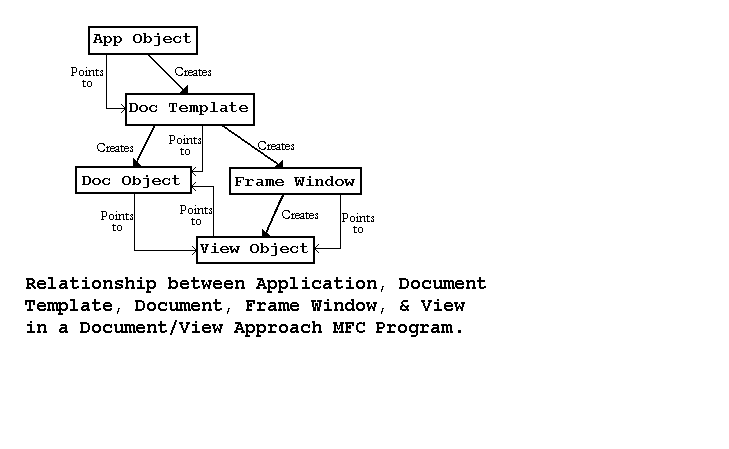 Serialization--
Provides for storage/retrieval of document data
Usually to/from a disk file
CDocument class has serialization built into it
In DOCUMENT/VIEW apps, saving/storing data is straightforward
Dynamic Creation--
In DOCUMENT/VIEW approach, objects are dynamic
DOCUMENT/VIEW program is run
Its frame window, document, and view are created dynamically
DOC/VIEW objects synthesized from file data
Need to be created at load time
To allow for dynamic creation, following macros used
(in classes derived from CFrameWnd, CDocument, and CView):
DECLARE_DYNCREATE(class_name) // in declaration (.h file)
IMPLEMENT_DYNCREATE(class_name, parent_class_name) // (in .cpp file)
IMPLEMENT_DYNCREATE() macro is invoked
Class is enabled for dynamic creation
Now a template can be created
Document/View Programs--
Almost always have at least four classes derived from:
CFrameWnd
CDocument
CView
CWinApp
Usually put into separate declaration and implementation files
Because of template and dynamic creation, there is lots of initialization
Could be done by hand, but nobody does it that way
Instead use Microsoft Developer Studio AppWizard and ClassWizard tools:
AppWizard--
Tool that generates a DOC/VIEW MFC program framework automatically
Can be built on and customized by programmer
Provides fast, efficient way of producing Microsoft Windows programs
Performs required initialization automatically
Creates functional CFrameWnd, CView, CDocument, CWinApp classes
After AppWizard does it's thing:
Application can be built and run
Full-fledged window with all common menu items, tools, etc
(window doesn't do anything)
Message Handling in a Framework-based MFC App using ClassWizard--
ClassWizard--
Tool that connects resources & user-generated events to pgm response code
Can write C++ skeleton routines to handle messages
Inserts code into appropriate places in program
Code then can then be customized by hand
Can used to help derive classes from MFC base classes
SKETCH Application: Example of Using AppWizard and ClassWizard--
Serialization--
Provides for storage/retrieval of document data
Usually to/from a disk file
CDocument class has serialization built into it
In DOCUMENT/VIEW apps, saving/storing data is straightforward
Dynamic Creation--
In DOCUMENT/VIEW approach, objects are dynamic
DOCUMENT/VIEW program is run
Its frame window, document, and view are created dynamically
DOC/VIEW objects synthesized from file data
Need to be created at load time
To allow for dynamic creation, following macros used
(in classes derived from CFrameWnd, CDocument, and CView):
DECLARE_DYNCREATE(class_name) // in declaration (.h file)
IMPLEMENT_DYNCREATE(class_name, parent_class_name) // (in .cpp file)
IMPLEMENT_DYNCREATE() macro is invoked
Class is enabled for dynamic creation
Now a template can be created
Document/View Programs--
Almost always have at least four classes derived from:
CFrameWnd
CDocument
CView
CWinApp
Usually put into separate declaration and implementation files
Because of template and dynamic creation, there is lots of initialization
Could be done by hand, but nobody does it that way
Instead use Microsoft Developer Studio AppWizard and ClassWizard tools:
AppWizard--
Tool that generates a DOC/VIEW MFC program framework automatically
Can be built on and customized by programmer
Provides fast, efficient way of producing Microsoft Windows programs
Performs required initialization automatically
Creates functional CFrameWnd, CView, CDocument, CWinApp classes
After AppWizard does it's thing:
Application can be built and run
Full-fledged window with all common menu items, tools, etc
(window doesn't do anything)
Message Handling in a Framework-based MFC App using ClassWizard--
ClassWizard--
Tool that connects resources & user-generated events to pgm response code
Can write C++ skeleton routines to handle messages
Inserts code into appropriate places in program
Code then can then be customized by hand
Can used to help derive classes from MFC base classes
SKETCH Application: Example of Using AppWizard and ClassWizard--
 User can use mouse as a drawing pencil
Left mouse button down
line in window follows mouse motion
Left mouse button up
Sketching stops
User clicks "Drawing Color" menu item
Popup menu with selections: "Red", "Green", "Blue"
Used to choose drawing color
User clicks "Clear" menu item
window client area is erased
Sketch data (points) won't be saved
Leave CDocument class created by AppWizard alone:
Called CSketchDoc class in sketchDoc.h and sketchDoc.cpp
Base functionality of CWinApp and CFrameWnd classes are adequate
Leave them alone:
Called CSketchApp class in sketch.h and sketch.cpp
And CMainFrame class in MainFrm.h and MainFrm.cpp
Use ClassWizard to add sketching & color functionality to CView class:
Called CSketchView in sketchView.h and sketchView.cpp
Steps in Setting up AppWizard to Generate SKETCH Framework--
1. From VC++ Visual Studio: "File | New | Projects-tab"
Choose "MFC AppWizard (exe)"
Enter name of the project (here "sketch")
2. In resulting "MFC AppWizard-Step 1" window,
Choose "Single document" radio button
Press "Next" button
3. In next two windows ("Step 2 of 6" and "Step 3 of 6"),
Press "Next" button
4. In resulting "Step 4 of 6" window,
Uncheck: "Docking toolbar", "Initial status bar", "Printing and print preview"
Only "3D controls" check box remains checked
Press "Finish" and "OK" buttons
AppWizard creates all source files in the MFC, SDI, DOC/VIEW app
"Build" project (as always) and run application
Full-fledged window with lots of functionality
Now use ClassWizard to make it into what we want: the sketching app
Sketching Requirements--
If left mouse button is down:
Each time mouse moves:
Get current point (from mouse move message data)
Get a device context and pen of drawing color
Select pen into DC
Move to old point
Draw line from old point to current point
Make current point become old point
Select pen out of device context
Use following variables--
BOOLEAN m_butdn flag: left button state
CPoint structures (m_ptold and m_pt): old and current points
CDC object pointer (*pDC): to access DC drawing functions
COLORREF variable (nColor): current drawing color
(Selected by user from "Drawing color" popup menu)
Declaring Variables in the sketchView.h File--
Choose ClassView Icon in project workspace window (left side)
Expand it, and double click on CSketchView
sketchView.h file comes into editing window (right side)
After the lines:
class CSketchView : public CView
{
Enter following code to declare the variables:
(Could also be done by right clicking on CSketchView and choosing
"Add Member Variable"--just fill in the resulting dialog box)
protected:
CPoint m_ptold, m_pt;
BOOL m_butdn;
CDC *pDC;
COLORREF nColor;
Changing the Menu--
Choose ResourceView icon in project workspace window
Expand "sketch resources" folder and Menu subfolder
Double click IDR_MAINFRAME
Menu editor appears
App already has "File", "Edit" popup menus with several standard items
Since App will not do any file I/O or editing
Use <Delete> keyboard key to delete all "File" entries except "Exit"
Delete entire "Edit" popup menu
Add a popup menu called "Drawing Color" with items:
"Red" (IDM_RED), "Green" (IDM_GREEN), and "Blue" (IDM_BLUE)
Add another menu item called "Clear" (IDM_CLEAR) to main menu bar
Drag "Help" menu item to right side of the menu bar
Removing the Accelerator Table--
Close menu editor
Expand "sketch resources" Accelerator subfolder in ResourceView
Delete IDR_MAINFRAME accelerator by selecting it and using <Delete>
Adding Code to the sketchView.cpp File--
Use ClassWizard to add code to respond to following messages:
WM_LBUTTONDOWN, WM_LBUTTONUP, WM_MOUSEMOVE,
WM_COMMAND menu messages
Code Requirements--
WM_LBUTTONDOWN
Set m_butdn to TRUE and record point in m_ptold
WM_LBUTTONUP
Set m_butdn to FALSE
"Drawing Color" menu choices
Set nColor to the appropriate COLORREF with RGB()
"Clear" menu choice
Invalidate window's client area to force a WM_PAINT message
WM_MOUSEMOVE
If mouse button is down (m_butdn==TRUE):
Get pointer to a device context, pDC, with GetDC()
Set m_pt to point data from mouse message
Construct solid pen of color nColor using CPen class constructor
Use pDC's member functions:
SelectObject() to select pen into the device context
MoveTo(m_ptold) to move it to old point
LineTo(m_pt) to draw line to new point
Set m_ptold equal to m_pt
Use pDC's SelectObject() to select the pen out of the DC
(Automatically class destructor will destroy pen and DC)
Using ClassWizard to Implement Requirements--
Starting ClassWizard--
Easiest way: Click ClassWizard Toolbar Button:
User can use mouse as a drawing pencil
Left mouse button down
line in window follows mouse motion
Left mouse button up
Sketching stops
User clicks "Drawing Color" menu item
Popup menu with selections: "Red", "Green", "Blue"
Used to choose drawing color
User clicks "Clear" menu item
window client area is erased
Sketch data (points) won't be saved
Leave CDocument class created by AppWizard alone:
Called CSketchDoc class in sketchDoc.h and sketchDoc.cpp
Base functionality of CWinApp and CFrameWnd classes are adequate
Leave them alone:
Called CSketchApp class in sketch.h and sketch.cpp
And CMainFrame class in MainFrm.h and MainFrm.cpp
Use ClassWizard to add sketching & color functionality to CView class:
Called CSketchView in sketchView.h and sketchView.cpp
Steps in Setting up AppWizard to Generate SKETCH Framework--
1. From VC++ Visual Studio: "File | New | Projects-tab"
Choose "MFC AppWizard (exe)"
Enter name of the project (here "sketch")
2. In resulting "MFC AppWizard-Step 1" window,
Choose "Single document" radio button
Press "Next" button
3. In next two windows ("Step 2 of 6" and "Step 3 of 6"),
Press "Next" button
4. In resulting "Step 4 of 6" window,
Uncheck: "Docking toolbar", "Initial status bar", "Printing and print preview"
Only "3D controls" check box remains checked
Press "Finish" and "OK" buttons
AppWizard creates all source files in the MFC, SDI, DOC/VIEW app
"Build" project (as always) and run application
Full-fledged window with lots of functionality
Now use ClassWizard to make it into what we want: the sketching app
Sketching Requirements--
If left mouse button is down:
Each time mouse moves:
Get current point (from mouse move message data)
Get a device context and pen of drawing color
Select pen into DC
Move to old point
Draw line from old point to current point
Make current point become old point
Select pen out of device context
Use following variables--
BOOLEAN m_butdn flag: left button state
CPoint structures (m_ptold and m_pt): old and current points
CDC object pointer (*pDC): to access DC drawing functions
COLORREF variable (nColor): current drawing color
(Selected by user from "Drawing color" popup menu)
Declaring Variables in the sketchView.h File--
Choose ClassView Icon in project workspace window (left side)
Expand it, and double click on CSketchView
sketchView.h file comes into editing window (right side)
After the lines:
class CSketchView : public CView
{
Enter following code to declare the variables:
(Could also be done by right clicking on CSketchView and choosing
"Add Member Variable"--just fill in the resulting dialog box)
protected:
CPoint m_ptold, m_pt;
BOOL m_butdn;
CDC *pDC;
COLORREF nColor;
Changing the Menu--
Choose ResourceView icon in project workspace window
Expand "sketch resources" folder and Menu subfolder
Double click IDR_MAINFRAME
Menu editor appears
App already has "File", "Edit" popup menus with several standard items
Since App will not do any file I/O or editing
Use <Delete> keyboard key to delete all "File" entries except "Exit"
Delete entire "Edit" popup menu
Add a popup menu called "Drawing Color" with items:
"Red" (IDM_RED), "Green" (IDM_GREEN), and "Blue" (IDM_BLUE)
Add another menu item called "Clear" (IDM_CLEAR) to main menu bar
Drag "Help" menu item to right side of the menu bar
Removing the Accelerator Table--
Close menu editor
Expand "sketch resources" Accelerator subfolder in ResourceView
Delete IDR_MAINFRAME accelerator by selecting it and using <Delete>
Adding Code to the sketchView.cpp File--
Use ClassWizard to add code to respond to following messages:
WM_LBUTTONDOWN, WM_LBUTTONUP, WM_MOUSEMOVE,
WM_COMMAND menu messages
Code Requirements--
WM_LBUTTONDOWN
Set m_butdn to TRUE and record point in m_ptold
WM_LBUTTONUP
Set m_butdn to FALSE
"Drawing Color" menu choices
Set nColor to the appropriate COLORREF with RGB()
"Clear" menu choice
Invalidate window's client area to force a WM_PAINT message
WM_MOUSEMOVE
If mouse button is down (m_butdn==TRUE):
Get pointer to a device context, pDC, with GetDC()
Set m_pt to point data from mouse message
Construct solid pen of color nColor using CPen class constructor
Use pDC's member functions:
SelectObject() to select pen into the device context
MoveTo(m_ptold) to move it to old point
LineTo(m_pt) to draw line to new point
Set m_ptold equal to m_pt
Use pDC's SelectObject() to select the pen out of the DC
(Automatically class destructor will destroy pen and DC)
Using ClassWizard to Implement Requirements--
Starting ClassWizard--
Easiest way: Click ClassWizard Toolbar Button:  (May or may not be visible on Developer Studio main menu bar)
If not displayed, to add it:
Right-click menu bar
Select "Customize..." from resulting popup
Under "Category:" combo box, select "View"
ClassWizard Toolbar Button appears in "Buttons" area
Drag it to the menu bar
Other ways of starting ClassWizard:
Press <Ctrl>-w or
Select "View | ClassWizard" from Developer Studio's menu bar
Result of starting ClassWizard: "MFC ClassWizard" Dialog Box
"MFC ClassWizard" Dialog Box--
Should have "sketch" in "Project:" box, "CSketchView" in "Class name:" box
Scroll through "Messages" list to find messages we want to respond to:
Scroll and select WM_LBUTTONDOWN
Press "Add Function" button
Class Wizard adds skeleton code in right places to:
Set up CSketchView's message map
Will contain OnLButtonDown() handler
Click the "Edit Code" button
Taken to exact place in code where additions must be made
Has a comment:
//TODO: Add your message handler code here
Add following after "//TODO" line:
m_butdn = TRUE;
m_ptold = point;
Go back to ClassWizard (<ctrl>-w)
Use it in same way to add WM_LBUTTONUP handler
Add following line of code after resulting "//TODO":
m_butdn = FALSE;
Use ClassWizard to add WM_MOUSEMOVE handler and following code:
if (m_butdn)
{
pDC = GetDC();
m_pt = point;
CPen pPen(PS_SOLID, 1, nColor);
CPen *pPenOld = pDC->SelectObject(&pPen);
pDCMoveTo(m_ptold);
pDCLineTo(m_pt);
m_ptold = m_pt;
pDC->SelectObject(pPenOld);
}
Adding the WM_COMMAND menu item handlers--
Invoke ClassWizard and scroll "ObjectIDs" list (not "Messages")
Scroll to "IDM_BLUE" inserted by Dev Studio's integrated environment
Select it and choose "COMMAND" in "Messages" list box
Click "Add Function" button
Click "OK" in resulting "Add Member Function" dialog box
ClassWizard generates On_Blue() handler to message map
Press "Edit Code" to go to skeleton handler and add following code:
nColor = RGB(0,0,255);
Use same procedure is to add OnGreen() and OnRed() handlers
Add OnClear() handler in same way, code to be added:
Invalidate(TRUE);
Member Variable Initialization--
All data members added to CSketchView class need to be initialized
If not, they will contain garbage when application begins
Place initialization code CSketchView constructor:
Go back to project workspace window
From Project Workspace window choose ClassView icon
Expand "sketch classes" icon and CSketchView Class icon
Double click on CSketchView() constructor
Add following initialization code under "//TODO" comment:
m_pt = m_ptold = CPoint(0,0);
m_butdn = FALSE;
nColor = RGB(0,0,0); // initial drawing color black
Build project as usual
If no errors
Functioning DOCUMENT/VIEW color sketching application
Using Modal Dialog Boxes in MFC Wizard-Generated Frameworks--
Must do the following:
Insert dialog box template into the program's resources (as usual)
Instantiate a CDialog-based object
Call object's DoModal() function
Exchanging data between dialog box control and CDialog member variables--
Method 1:
Get a pointer to control's ID with CWnd::GetDlgItem()
Use pointer to send appropriate messages to control
(as in DIALG2 example)
OK for non-Wizard-generated apps
Not convenient for Wizard-generated apps
Method 2:
Use DDX (Dynamic Data Exchange) mechanism:
DDX system moves data between dialog box controls and variables
Occurs when call is made to CWnd member function UpdateData(dir)
Boolean parameter dirdirection of data movement:
TRUE==>from controls to variables
FALSE==>from variables to controls
MFC library's DoModal() function calls UpdateData(FALSE)
(Called by your application to start the dialog box)
==>Data from pgm variables transferred to dialog box's controls
MFC library's OnOK() member function calls UpdateData(TRUE)
(Called when user clicks "OK" button inside dialog box)
==>Data from dialog box's controls transferred to pgm variables
OnOK() then calls CDialog::EndDialog()
Dialog box disappears and DoModal() returns
Destructor destroys the dialog box
This sequence often used in simple apps that don't call UpdateData() explicitly
SKETCH3 Applicdation: Adding a Text-Display Modal Dialog Box to SKETCH--
(May or may not be visible on Developer Studio main menu bar)
If not displayed, to add it:
Right-click menu bar
Select "Customize..." from resulting popup
Under "Category:" combo box, select "View"
ClassWizard Toolbar Button appears in "Buttons" area
Drag it to the menu bar
Other ways of starting ClassWizard:
Press <Ctrl>-w or
Select "View | ClassWizard" from Developer Studio's menu bar
Result of starting ClassWizard: "MFC ClassWizard" Dialog Box
"MFC ClassWizard" Dialog Box--
Should have "sketch" in "Project:" box, "CSketchView" in "Class name:" box
Scroll through "Messages" list to find messages we want to respond to:
Scroll and select WM_LBUTTONDOWN
Press "Add Function" button
Class Wizard adds skeleton code in right places to:
Set up CSketchView's message map
Will contain OnLButtonDown() handler
Click the "Edit Code" button
Taken to exact place in code where additions must be made
Has a comment:
//TODO: Add your message handler code here
Add following after "//TODO" line:
m_butdn = TRUE;
m_ptold = point;
Go back to ClassWizard (<ctrl>-w)
Use it in same way to add WM_LBUTTONUP handler
Add following line of code after resulting "//TODO":
m_butdn = FALSE;
Use ClassWizard to add WM_MOUSEMOVE handler and following code:
if (m_butdn)
{
pDC = GetDC();
m_pt = point;
CPen pPen(PS_SOLID, 1, nColor);
CPen *pPenOld = pDC->SelectObject(&pPen);
pDCMoveTo(m_ptold);
pDCLineTo(m_pt);
m_ptold = m_pt;
pDC->SelectObject(pPenOld);
}
Adding the WM_COMMAND menu item handlers--
Invoke ClassWizard and scroll "ObjectIDs" list (not "Messages")
Scroll to "IDM_BLUE" inserted by Dev Studio's integrated environment
Select it and choose "COMMAND" in "Messages" list box
Click "Add Function" button
Click "OK" in resulting "Add Member Function" dialog box
ClassWizard generates On_Blue() handler to message map
Press "Edit Code" to go to skeleton handler and add following code:
nColor = RGB(0,0,255);
Use same procedure is to add OnGreen() and OnRed() handlers
Add OnClear() handler in same way, code to be added:
Invalidate(TRUE);
Member Variable Initialization--
All data members added to CSketchView class need to be initialized
If not, they will contain garbage when application begins
Place initialization code CSketchView constructor:
Go back to project workspace window
From Project Workspace window choose ClassView icon
Expand "sketch classes" icon and CSketchView Class icon
Double click on CSketchView() constructor
Add following initialization code under "//TODO" comment:
m_pt = m_ptold = CPoint(0,0);
m_butdn = FALSE;
nColor = RGB(0,0,0); // initial drawing color black
Build project as usual
If no errors
Functioning DOCUMENT/VIEW color sketching application
Using Modal Dialog Boxes in MFC Wizard-Generated Frameworks--
Must do the following:
Insert dialog box template into the program's resources (as usual)
Instantiate a CDialog-based object
Call object's DoModal() function
Exchanging data between dialog box control and CDialog member variables--
Method 1:
Get a pointer to control's ID with CWnd::GetDlgItem()
Use pointer to send appropriate messages to control
(as in DIALG2 example)
OK for non-Wizard-generated apps
Not convenient for Wizard-generated apps
Method 2:
Use DDX (Dynamic Data Exchange) mechanism:
DDX system moves data between dialog box controls and variables
Occurs when call is made to CWnd member function UpdateData(dir)
Boolean parameter dirdirection of data movement:
TRUE==>from controls to variables
FALSE==>from variables to controls
MFC library's DoModal() function calls UpdateData(FALSE)
(Called by your application to start the dialog box)
==>Data from pgm variables transferred to dialog box's controls
MFC library's OnOK() member function calls UpdateData(TRUE)
(Called when user clicks "OK" button inside dialog box)
==>Data from dialog box's controls transferred to pgm variables
OnOK() then calls CDialog::EndDialog()
Dialog box disappears and DoModal() returns
Destructor destroys the dialog box
This sequence often used in simple apps that don't call UpdateData() explicitly
SKETCH3 Applicdation: Adding a Text-Display Modal Dialog Box to SKETCH--
 Has new "Text" menu item (ID = IDM_TEXT)
User clicks "Text"
Modal dialog box appears
Allows user to enter:
Line of text to be displayed in sketching window
(x,y) coordinates where text is to be displayed
Dialog box (IDD_TEXT) contents:
Three static controls
(labeled "x", "y", and "Text String")
Three single-line edit controls
(IDC_X, IDC_Y, IDC_TEXTEDIT)
Standard "OK" and "Cancel" buttons
Has new "Text" menu item (ID = IDM_TEXT)
User clicks "Text"
Modal dialog box appears
Allows user to enter:
Line of text to be displayed in sketching window
(x,y) coordinates where text is to be displayed
Dialog box (IDD_TEXT) contents:
Three static controls
(labeled "x", "y", and "Text String")
Three single-line edit controls
(IDC_X, IDC_Y, IDC_TEXTEDIT)
Standard "OK" and "Cancel" buttons
 Steps in Modifying SKETCH Application Code--
1. ResourceView's menu editor:
Add new "Text" (ID=IDM_TEXT) menu item to SKETCH menu bar
2. ResourceView's dialog box editor:
"Insert | Resource | Dialog | New" to set up new dialog box:
(IDD_TEXT, "Enter Text")
Position each dialog box control
Right click"Properties" box to enter ID and/or caption
[Don't double click
Dev Studio would ask to create new dialog class--NOT NOW!
Wait until finished setting up dialog box]
3. ClassWizard to create the new class (<Ctrl>-w)
Respond to class name prompt with CTextDlg
Accept default base class (CDialog)
4. Select "Member Variables" tab
Make sure that "Class name:" is CtextDlg
(ClassWizard has placed control IDs in a table)
Select each control
Choose "Add Variable"
Fill in resulting "Add Member Variable" dialog box as follows:
ControlIDs Type Member
---------------------------------
IDC_TEXTEDIT CString m_text
IDC_X UINT m_x
IDC_Y UINT m_y
5. ClassWizard to add OnText() handler
Will respond to the new IDM_TEXT menu item
Enter handler code:
CTextDlg dlg;
dlg.DoModal();
pDC = GetDC();
pDCSetTextColor(nColor);
pDCTextOut(dlg.m_x,dlg.m_y,dlg.m_text,lstrlen(dlg.m_text));
6. At top of sketchView.cpp file, with other include statements, type in:
#include "TextDlg.h"
7. Build and run new version of SKETCH
Steps in Modifying SKETCH Application Code--
1. ResourceView's menu editor:
Add new "Text" (ID=IDM_TEXT) menu item to SKETCH menu bar
2. ResourceView's dialog box editor:
"Insert | Resource | Dialog | New" to set up new dialog box:
(IDD_TEXT, "Enter Text")
Position each dialog box control
Right click"Properties" box to enter ID and/or caption
[Don't double click
Dev Studio would ask to create new dialog class--NOT NOW!
Wait until finished setting up dialog box]
3. ClassWizard to create the new class (<Ctrl>-w)
Respond to class name prompt with CTextDlg
Accept default base class (CDialog)
4. Select "Member Variables" tab
Make sure that "Class name:" is CtextDlg
(ClassWizard has placed control IDs in a table)
Select each control
Choose "Add Variable"
Fill in resulting "Add Member Variable" dialog box as follows:
ControlIDs Type Member
---------------------------------
IDC_TEXTEDIT CString m_text
IDC_X UINT m_x
IDC_Y UINT m_y
5. ClassWizard to add OnText() handler
Will respond to the new IDM_TEXT menu item
Enter handler code:
CTextDlg dlg;
dlg.DoModal();
pDC = GetDC();
pDCSetTextColor(nColor);
pDCTextOut(dlg.m_x,dlg.m_y,dlg.m_text,lstrlen(dlg.m_text));
6. At top of sketchView.cpp file, with other include statements, type in:
#include "TextDlg.h"
7. Build and run new version of SKETCH